A Harness Agent for writing

Agents draft.
You sign off.

DeepWrite is a desktop app for writing fiction and screenplays. It brings your models, prompts, skills, materials and manuscript together, so a team of agents with distinct roles can help you plan, draft and revise. Every change is shown to you as a diff first, and nothing is written to your files until you approve it.

  • Works are local Markdown folders
  • Bring your own models, switch any time
  • What you write is yours to sell
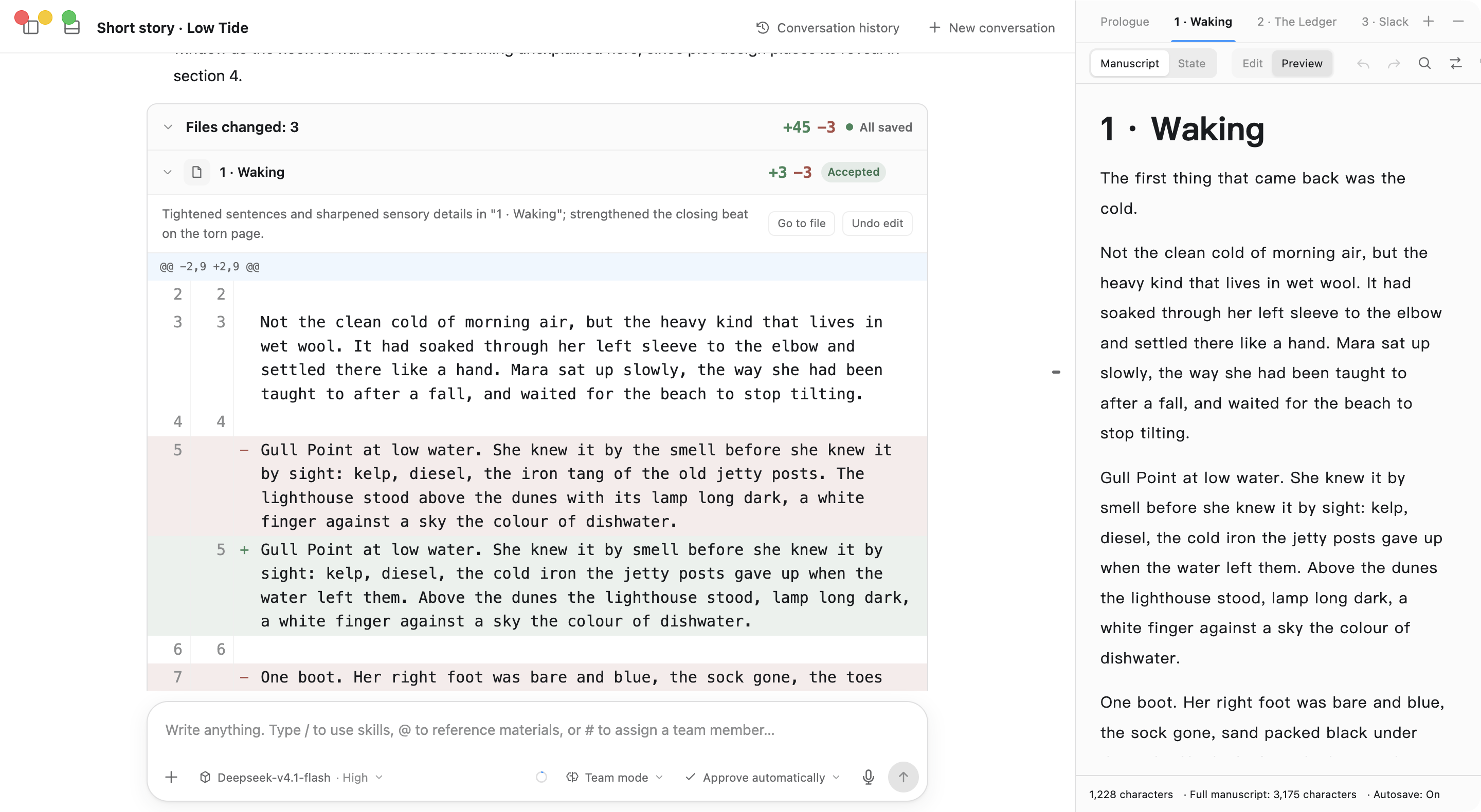
The DeepWrite workspace with the sidebar collapsed: on the left, an agent conversation whose “Files changed: 3” card is expanded to show the edit to “1 · Waking” as a red and green diff; on the right, the editor showing the revised text of “1 · Waking”.
  1. After each run, every changed file is listed with its line counts
  2. When an agent changes something, you see it first; it is saved only after you accept
  3. Your manuscript sits right beside it, ready for hand edits

What a Harness Agent is

The model is the horsepower.
The harness lets it pull your cart.

A harness is the gear that connects a horse to a cart. A strong horse has plenty of power, but it doesn’t know where you’re headed or which stretch of road is off limits. Put it in a harness and hitch it to the cart, and all that strength moves the load you actually want moved.

Language models work the same way. DeepWrite isn’t another chat box. It’s a harness built for writing: it tells the model which book it’s working on, which settings and earlier chapters to read, which tools it may use and which agent owns each step, and it sets one firm rule: every edit goes through you first. That’s why we call it a Harness Agent for writing.

  1. 01

    It knows which book you’re writing

    The characters, plot, outline and manuscript of the current work, plus any bound materials and skills, are passed to the model as needed. No more copying and pasting.

  2. 02

    It only uses the tools you allow

    Controlled tools decide what it can read, what it can write and whether it can go online. You can also set which materials each agent may read.

  3. 03

    Every word it changes passes through you

    Writes become diff proposals first, and are saved to local files only after you accept them.

Core features

Not just better at chatting. Better at getting work done.

DeepWrite turns the three hardest parts of writing (revising, dividing the work and keeping a long book consistent) into rules of the software itself.

Saved after review

Review edits first. Only what you accept is saved.

Every write an agent makes first becomes an edit proposal: which section changed, how many lines were added or removed, and exactly which words. You accept or reject each one, and only accepted changes are saved locally. If you’ve edited the same document in the meantime, DeepWrite keeps the newer version instead of silently overwriting it.

  • Two approval modes: confirm each edit yourself, or let DeepWrite approve for you
  • The files changed in one round of conversation are gathered into one list you can review in place
  • Turn on document version history to see diffs by conversation turn and roll back to any version

Illustration · based on the app’s proposal card
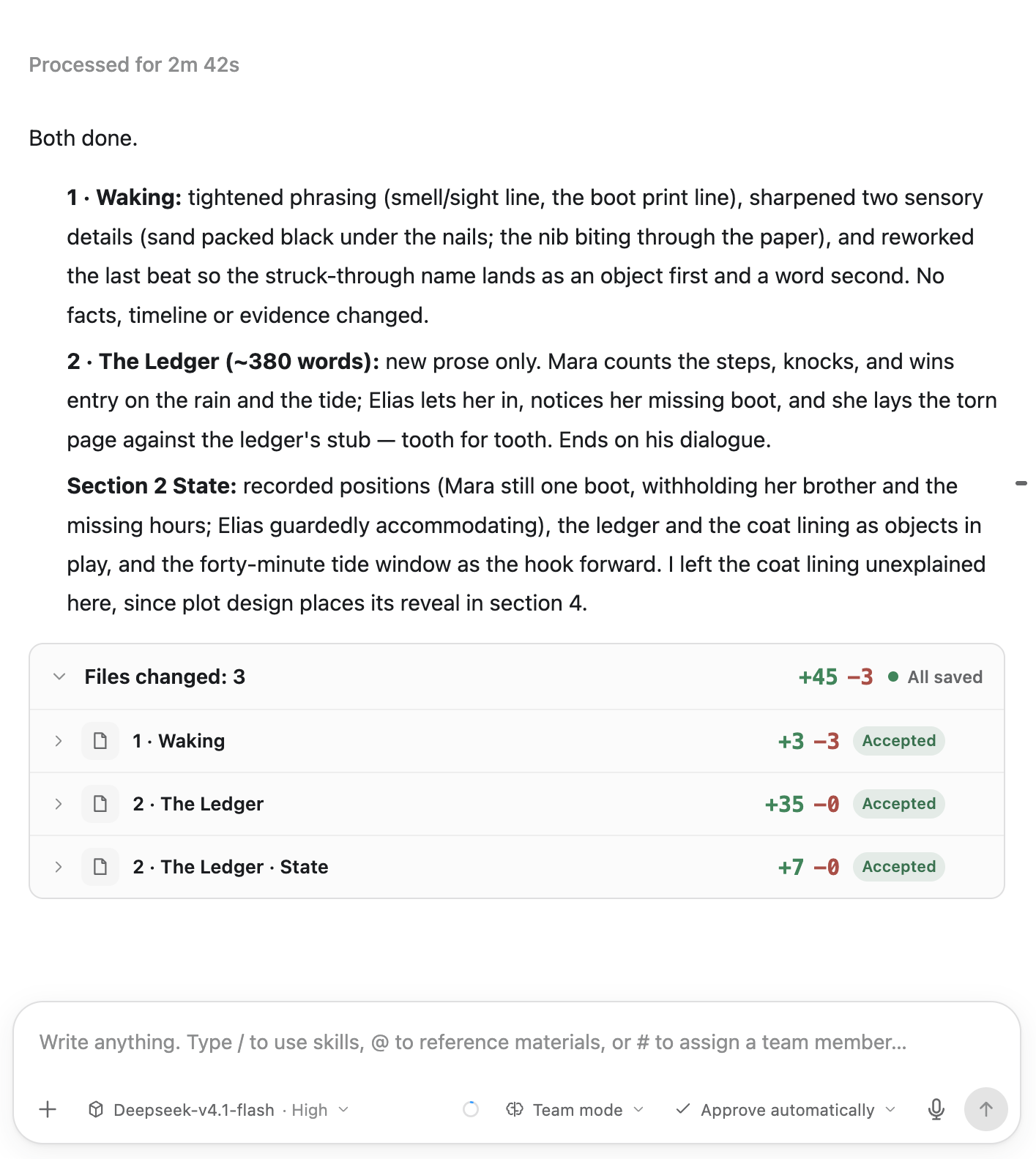
The agent’s reply summarising its edits, followed by a “Files changed: 3” card (+45 −3, all saved): “1 · Waking” +3 −3, “2 · The Ledger” +35 −0 and “2 · The Ledger · State” +7 −0, each marked Accepted.
Real screenshot · the change summary after a run, auto-accepted when approval is automatic
  1. Adds and deletes, at a glance
Specialized agents and teams

A writing team where everyone has a job

Short-story writing comes with built-in agents for characters, plot, outline, the manuscript expert and the section writer, each handling one stretch of the process. Every agent can have its own system prompt, shortcuts and model. Switch to a section and the section writer works around that section, picking up the earlier text, character state and voice.

Complex tasks go to a sub-agent team: the main agent splits the work and hands it to members, and with parallel mode on, up to five members work at once. For jobs that depend on a bit of luck, like polishing or naming a title, turn on draw mode to generate several candidates in one run and pick the best.

  • Dedicated agents for short stories, screenplays and long-form works
  • Enable teams by writing type, or bind one to a specific work
  • Keep editing other chapters while it runs, and step in with extra instructions any time
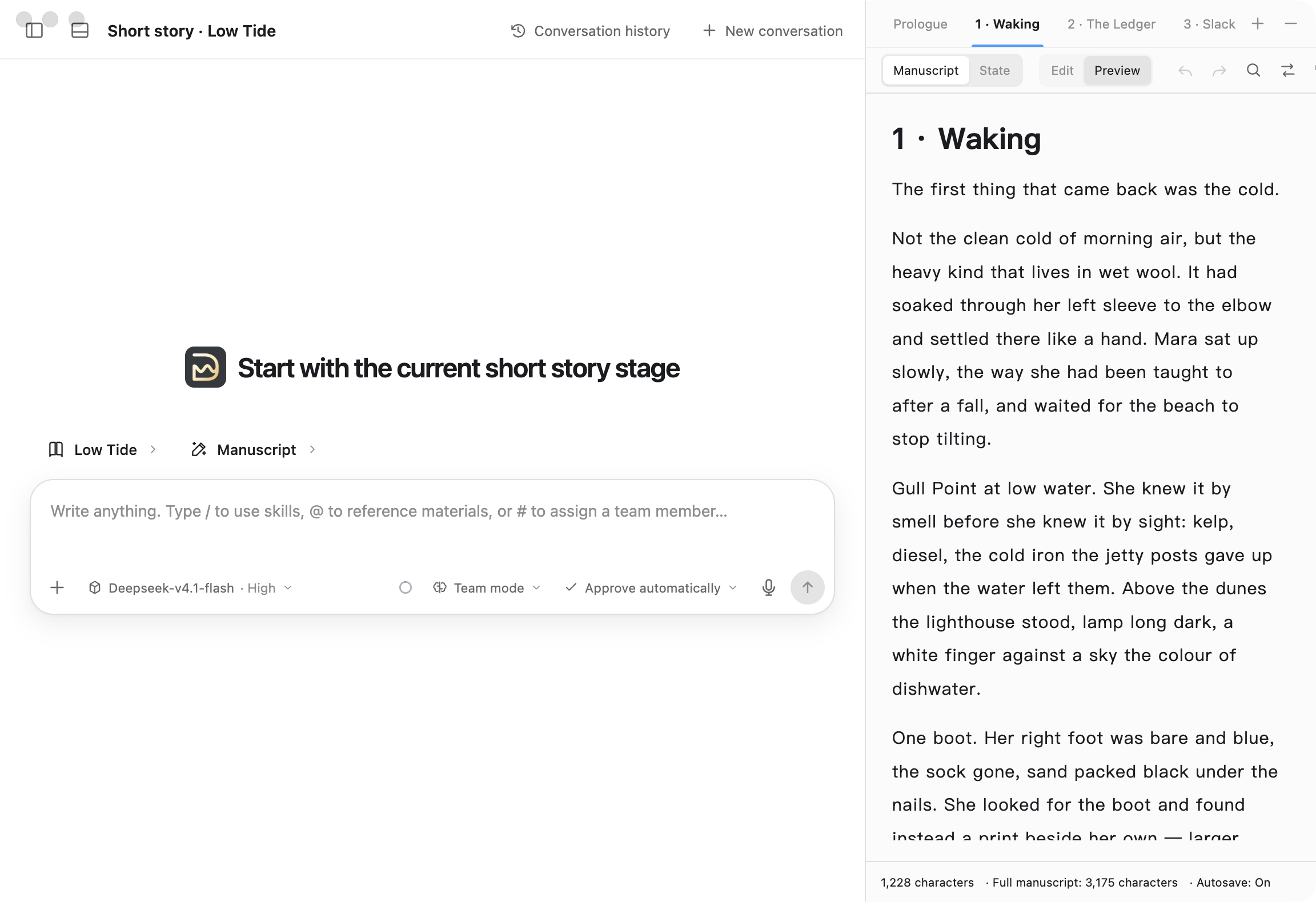
A new conversation on the manuscript stage of “Low Tide” in team mode: the message box invites you to type / for skills, @ for materials or # to assign a team member. The editor on the right has section tabs open and shows “1 · Waking”.
Real screenshot · a team-mode conversation beside the manuscript editor
  1. Switch sections, it reads that one
  2. In team mode, type # to hand a task to a team member
Long-form continuity · whole-book breakdown

Hundreds of chapters in, it still remembers

Long-form works are organized in stages: worldbuilding, characters, plot, manuscript. Agents at every stage share the same settings and maintain continuity files and a continuity ledger that record what has to stay consistent from chapter to chapter. Foreshadowing becomes thread lines, each tied to the chapter where it is planted and the chapter where it pays off. Agents can full-text search and read on demand, so the whole book never has to fit into one conversation.

Already have a draft? Whole-book breakdown imports a TXT file or a folder organized by chapter, lets you check the chapter splits, and rebuilds the entire book as a long-form work you can keep writing. Long-to-material-library then turns a long work’s worldbuilding, characters, plot, chapter outlines and style into materials a new book can draw on.

  • Continuity ledger: tied to chapter positions, so facts stay consistent
  • Whole-book breakdown can be stopped and resumed, and you can watch every subtask while it runs
  • Long-form edits can be undone, and restore points are kept even under automatic approval
123456789101112Ch. Thread · the scar on his arm Thread · the missing key Thread · unresolved Continuity ledger After Ch. 3Cast · timeline After Ch. 6Cast · timeline After Ch. 9Cast · timeline After Ch. 12Cast · timeline
Illustration · thread names are made up
  • Material and skill libraries

    Keep characters, worldbuilding and style samples in material libraries, and save your writing methods as skills. Bind them per work; type / in a chat to call a skill and @ to cite a material. You can also export them as a Markdown ZIP to share.

  • Bring your own models

    Four API types are supported: OpenAI Completions, OpenAI Responses, Anthropic Messages and Google Generative AI. Different agents can use different models, and you can switch the model and thinking level mid-conversation. Turn on web search when you need it.

  • A work is just a folder

    Each work is an ordinary folder: a deepwrite.json plus UTF-8 Markdown documents. Version it with Git, back it up on a sync drive, open it in any editor. It stays readable without DeepWrite.

  • Let other agents drive it

    With External Agent Control turned on, agents on your machine such as Claude Code and Codex can read and write works and organize libraries over MCP, and even have the writing team inside DeepWrite run a round. Deleted content can be restored from the trash.

And also
  • Images in the manuscript
  • Export to DOCX / EPUB / TXT
  • Keep editing while an agent runs
  • Step in or queue messages mid-run
  • Title, blurb and cover generation
  • System notification when a task finishes
  • Find and replace in the editor
  • Full-text search for long works

Workflow

From a spark to a finished draft.

A short story is the example here. Screenplays and long-form works have different stages but follow the same path: each step has its own agent, and each step’s output is a file you can open and edit.

  1. Set up a model

    Pick a local working folder, add your API service under Model Settings and test the connection.

  2. Create a work, bind your materials

    Create a short story, screenplay or long-form work, or open an existing work folder, and bind the material and skill libraries you want to use.

  3. Characters, plot, outline

    The character agent designs characters, relationships and motives; the plot agent plans the main line, conflicts and turns; the outline agent organizes them into a section-by-section outline.

  4. Write the manuscript, section by section

    Switch to a section and the section writer drafts it from the outline, the earlier text and character state. Edit in the editor on the right whenever you like; no need to wait for it to finish.

  5. Review, polish, export

    The manuscript expert reads the whole text and proposes edits, and only what you accept is saved. When you’re done, export to DOCX, EPUB or TXT.

Real screenshot · close-up of the change summary card

At step five, you just read and click Accept.

Compare

Same models. A harness built for writing.

DeepWrite calls the same models you already know. The difference isn’t the model; it’s everything around it: the context, the division of labor and the rules built for writing.

AspectGeneric chat windowDeepWrite
ContextPaste your settings, outline and earlier text in by hand every timeReads the current work, the current chapter and bound materials automatically
EditsRewrites whole passages, and you paste them back into your draft yourselfProduces a diff proposal; nothing is written to the file until you accept each change
Long-form memorySettings slip away as the conversation growsSettings, characters and the continuity ledger are stored as files and searched as needed
Division of laborOne assistant does everythingSeparate agents for characters, plot, outline and manuscript, plus teams that work in parallel
ModelsUsually limited to one provider’s modelsBring your own API; switch by agent or by task
Where your draft livesScattered across chat historyMarkdown in a folder on your machine, yours to take anywhere

“Generic chat window” means chatting with a model directly in a web page or app. It doesn’t refer to any particular product.

Download

Download DeepWrite

Nothing to install first. Download the installer for your system.

Choose your system

Pick the installer that matches your computer.

Windows

Your system

macOS

Your system

Android phone app

Your system
  • Android packageAndroid 7.0 or later · .apk
    Download

Create and edit works on your phone and revise them with agents, then sync works, material libraries and skill libraries with the desktop app through your own cloud drive.

macOS: “cannot be opened because the developer cannot be verified”

DeepWrite’s macOS installers are currently ad-hoc signed and have not been notarized by Apple. After you download one through a browser, WeChat or a similar channel, macOS may block the first launch. First make sure the installer came from deepwrite.download, then:

  1. Open the .dmg and drag DeepWrite into the Applications folder.
  2. In Applications, right-click (or Control-click) DeepWrite, choose Open, then click Open in the dialog.
  3. If it’s still blocked: open System Settings → Privacy & Security, find the message about DeepWrite near the bottom of the page and click Open Anyway.

You only need to do this the first time you open it. After that it launches normally.

Windows: “Windows protected your PC”

The Windows installer is currently not code-signed, so SmartScreen may show a blue warning. Once you’ve confirmed the installer came from deepwrite.download:

  1. Click More info in the warning window.
  2. Click Run anyway, then follow the installer.
Linux: how to install each format
AppImage
chmod +x DeepWrite-*.AppImage && ./DeepWrite-*.AppImage
Debian / Ubuntu
sudo apt install ./DeepWrite-*.deb
Fedora / RHEL
sudo dnf install ./DeepWrite-*.rpm
Arch
sudo pacman -U ./DeepWrite-*.pkg.tar.zst

RPM and Arch packages depend on libsecret, which is used to store model keys securely on your machine.

Android: “installing unknown apps” is blocked

The phone app is installed from an .apk downloaded from this site, not from an app store. Once you’ve confirmed the file came from deepwrite.download:

  1. Open the DeepWrite .apk when the download finishes.
  2. If installation is blocked, follow the prompt to Settings, allow your browser or file manager to install unknown apps, then go back and install.

Some phones also show a security scan or risk warning; choose to continue installing.

After you install

  1. 1

    Choose a local working folder

  2. 2

    Add an API service under Model Settings and test the connection

  3. 3

    Create a work, or open an existing DeepWrite work folder

  4. 4

    Create material and skill libraries as needed and bind them to your work

FAQ

Questions you might have

Where are my works stored?

In the local working folder you choose. Each work is a folder with a deepwrite.json and some UTF-8 Markdown files, which you can keep managing with Git, a sync drive or any text editor. You’re never locked in. While you write, the context an agent needs is sent to the model service you configured so it can generate replies.

Do I need my own API key?

We recommend adding your own model service. DeepWrite supports four API types (OpenAI Completions, OpenAI Responses, Anthropic Messages and Google Generative AI) and can connect to other services compatible with them. Settings also include a “DeepWrite free models” catalog you can enable; which models are available depends on the list inside the app. Model keys are stored only on your machine and are never exposed to the interface layer.

Does it cost anything?

The installer is a direct download from this site. Model usage is billed at your model provider’s prices, and you pay the provider directly.

Will the agent mess with my text?

Not silently. By default every agent write is shown as a diff first and saved only after you accept it; if the document was updated in the meantime, DeepWrite keeps the newer version. You can also switch to automatic approval and turn on document version history to review diffs and roll back whenever you want.

Can I use what I write with DeepWrite commercially?

Yes. You can write paid fiction, take commissions, publish and earn fees or royalties. The software license doesn’t require you to make your manuscripts public or share your writing income.

What does “source-available” mean?

DeepWrite is provided under the PolyForm Perimeter License 1.0.1. It lets you make money from your own creative work, study the software and modify it for your own writing needs. Without authorization, you may not use its code to offer others software, a website or a service that competes with DeepWrite, even for free. Because of that restriction, it is not open source as the OSI defines it. This is a plain-language summary; the license text is what governs.

Which systems are supported?

The desktop app runs on Windows x64, macOS (Apple Silicon and Intel) and Linux x64 (AppImage, DEB, RPM and Arch packages). The phone app is available for Android 7.0 or later and can sync works with the desktop app through your cloud drive. There is no iPhone or web version yet.

macOS says it can’t open the app. What now?

The macOS installers are currently ad-hoc signed and not notarized by Apple. Once you’re sure of where the installer came from, right-click DeepWrite in Applications and choose Open, or allow it under System Settings → Privacy & Security. See the install tips above for details.

Does it work with Claude Code and Codex?

Yes. Turn on External Agent Control in DeepWrite, and MCP-capable agents on your machine, such as Claude Code and Codex, can connect to it to manage works, material libraries, skill libraries and agent teams, or have the writing team inside the app run a task.